How to automatically share your YouTube videos on social media
Announce every new YouTube video on X, LinkedIn, Bluesky, Threads and Facebook automatically, with a caption per channel and a review step before it posts.
Эта статья доступна только на английском.
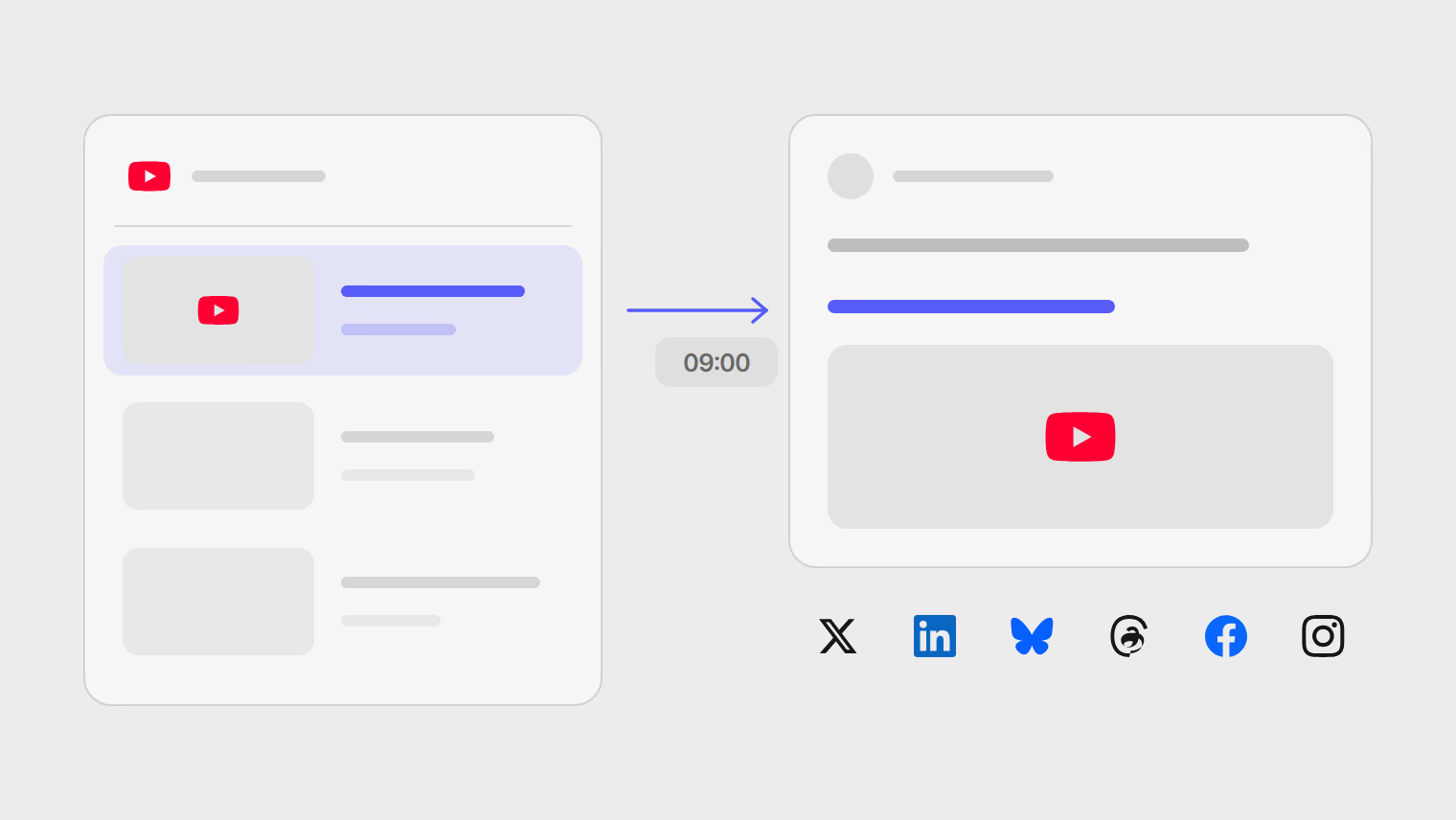
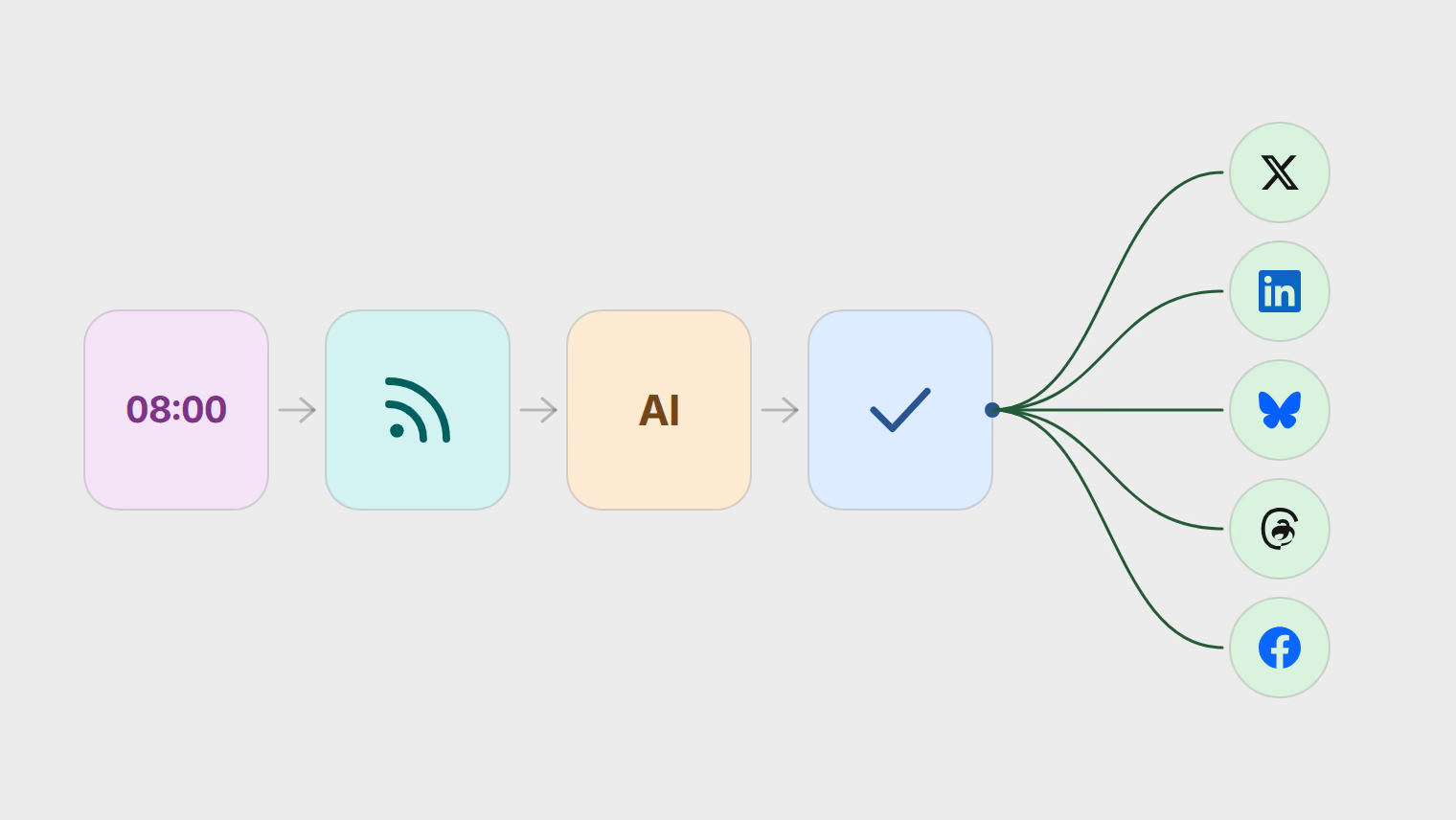
Every public YouTube channel has a feed that lists its latest uploads. An automation can check that feed on a schedule and post each new video to your other channels as a link, with the video's thumbnail attached. In Publedia the preset Announce new YouTube videos sets this up, and it can hold each post as a draft until you have read it. Automations in Publedia are in beta.
What gets posted
The automation shares a link to the video. It does not upload the video file anywhere.
Each post starts as the video's title, a blank line, and the video's address on YouTube. With Add the post's image turned on, which the preset does by default, Publedia also imports the video's thumbnail from the feed and attaches it as the post's image. The description you wrote on YouTube is not used.
If the thumbnail cannot be fetched, or it is not a JPEG, PNG or WebP image, the post goes out as text with the link. That is fine on most networks, but Instagram will not take a post without an image.
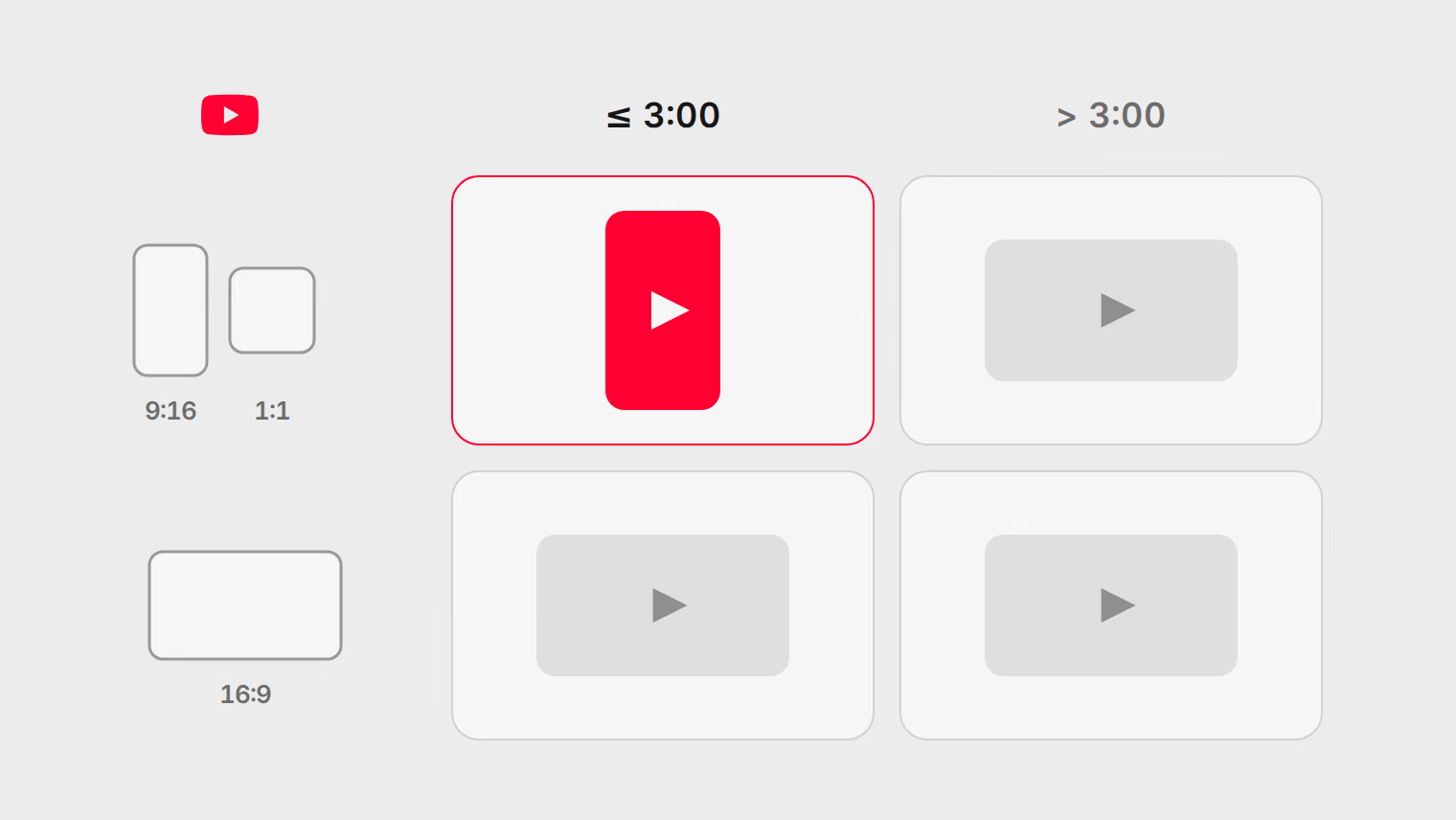
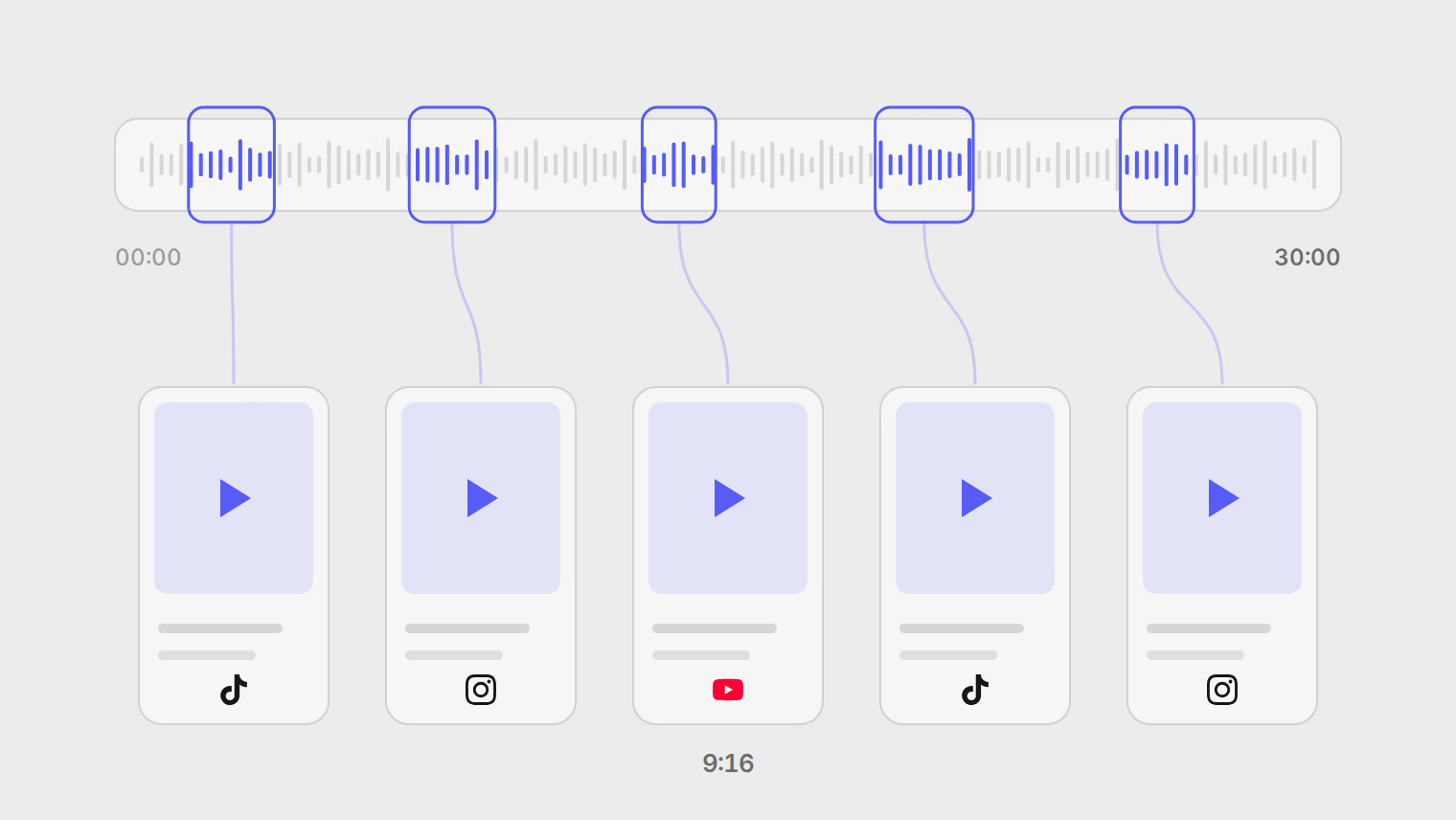
To put the actual video on TikTok or as a Short, you need the video file. The guide to repurposing a long video into Shorts covers that job.
Find your channel's feed
The feed for a channel lives at this address, with your channel ID at the end:
https://www.youtube.com/feeds/videos.xml?channel_id=UC...
YouTube does not document this address on a help page, but it works: opening it for a public channel returns an Atom feed of the channel's most recent uploads (15 in the feed we checked on 16 October 2026), each with a title, a link and a thumbnail. You rarely need to type it. Publedia finds it for you in one of three ways:
- Your channel is connected to Publedia. The source step shows a Use button with your channel's name. Select it and the feed address is filled in.
- You have your channel link. Paste
https://www.youtube.com/channel/UC...orhttps://www.youtube.com/@yourhandleinto YouTube channel link and select Look up. When it works, you see Found: and the title of your latest video. Include thewww.in a handle link: the lookup does not follow redirects, andyoutube.com/@yourhandlewithout it redirects. - You know your channel ID. YouTube's help explains where it is: sign in, select your profile picture, then Settings, then Advanced settings. You need to be the channel's primary owner to see it there. Add the ID to the end of the address above and paste the whole address.
Set up the automation
- Open Automations and select New automation.
- Choose Publishing, or search the presets for "YouTube", and select Use on Announce new YouTube videos.
- Under What to publish, connect your channel's feed in one of the ways above. Leave Skip what's already in the feed and Add the post's image on.
- Under Check for new posts, set when the feed is checked. The preset checks once a day at 09:00.
- Turn on Write new wording for each channel under Rewrite if you want a separate caption per network (more on this below).
- Under Channels, pick where the announcement goes.
- Leave Review each post before it goes out on for now.
- Check the Next posts preview, which shows what the next runs would do, then select Turn on.
Each check announces at most one new video. If you upload two in a day and the feed is checked once a day, the second one goes out on the next check. Add more check times if you post often or want the announcement sooner after an upload.
Write a caption per channel
A title and a link is a fair announcement on X and a thin one on LinkedIn. The Rewrite option adds an AI step that writes a separate caption for each channel you picked, in a length that suits that network. Each post is still checked against the network's real limit before it goes out; the character limits guide explains how each one counts.
Two things to know before you turn it on. The rewrite works from the title and the link, not from the video or its description, so a clear title gets a far better caption than a teaser. And each channel is a separate AI request charged to the workspace's AI budget: one video posted to four channels is four requests.
For more control, select Open full editor and use the AI rewrite step directly. Its Extra direction (optional) field takes standing instructions, such as "say who the video is for in the first line".
Review before anything posts
With review on, each run saves the announcement as a draft instead of publishing it. You find it in Posts, on the Drafts tab, edit it if you want, and publish or schedule it yourself. A video announced as a draft is not offered again, so deleting the draft skips that video.
The full editor's Require approval step has a second mode, Pause the run until approved. It creates nothing until someone approves under Automations, on the Waiting for approval tab, and then runs the rest of the steps. Declining publishes nothing, and the automation offers the same video again on its next run.
Keep review on for the first few weeks. Once you are publishing the drafts without changing them, turn it off and the automation posts on its own.
Which networks take the post
| Network | Takes the announcement | Notes |
|---|---|---|
| X | Yes | Counts against the monthly X allowance |
| Yes | Personal profiles only | |
| Bluesky | Yes | Text and image only, so the link carries the video |
| Threads | Yes | |
| Yes | ||
| Only with the image | Instagram takes no text-only posts, so a missing thumbnail means no post there | |
| YouTube, TikTok | No | Both take video only |
Posts to X count against the workspace's monthly X allowance: 5 on Basic, 15 on Pro and 60 on Ultra. A workspace that registers its own X app publishes outside that allowance and is billed by X directly (use your own X app shows how). If you go that way, note that X's own price list charges more for a post that contains a link than for one without, and every announcement contains one.
Compared with an integration recipe
General automation tools offer ready-made recipes that watch a YouTube channel and post each new video somewhere else. The recipes that rank for this search have no review step, and they write one caption for every network.
A recipe is the better choice if you need a destination Publedia does not publish to, or you want the video to start a longer chain in other apps, such as a spreadsheet row or a newsletter. These tools connect to many apps beyond social networks.
Publedia is the better fit when the posts themselves matter. Each channel can get its own caption, every post is checked against that network's limit before it is sent, the next runs are previewed before you turn it on, and nothing publishes until you approve it, if you want it that way.
Podcasts work the same way
The preset Announce new podcast episodes is the same flow for a podcast feed. Paste the feed under Podcast feed, and the episode's artwork is attached in place of a video thumbnail. Any other feed, such as a blog, uses the general feed presets in the guide to auto-posting an RSS feed.
Plans and limits
Automations are in beta and are not limited to one plan. Each plan includes a number of them: 1 on Basic, 3 on Pro and 15 on Ultra, and the pricing page lists the rest of each plan. The automations help article covers the full editor step by step.
Источники
Темы
- YouTube
- Automation
- RSS
- Video